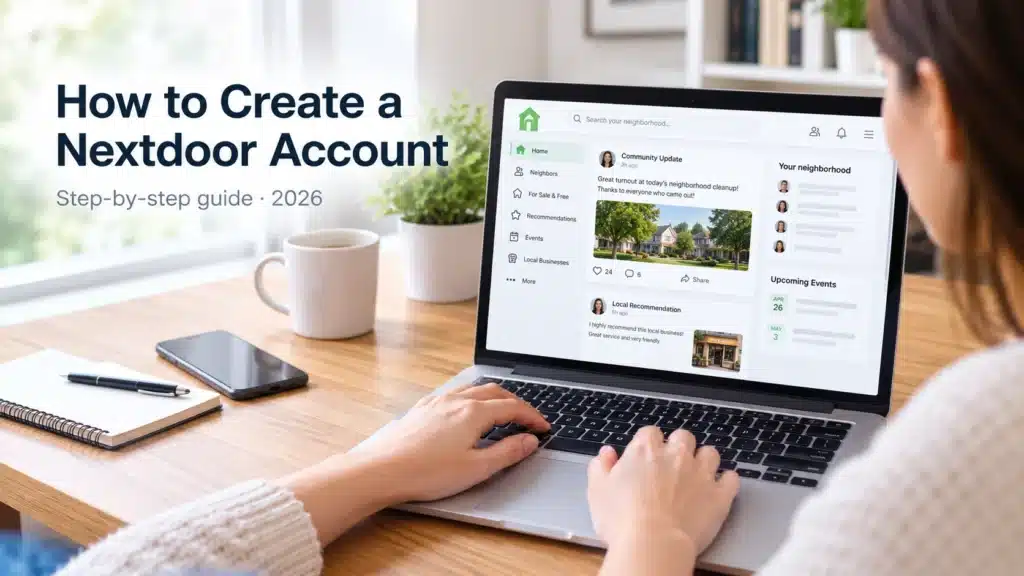
Have you heard about Nextdoor but aren’t sure how to get started? Maybe you want to connect with people in your neighborhood, find local recommendations, or promote your business to nearby customers.
Whatever your reason, creating a Nextdoor account is a straightforward process. You just need to visit the official website or download the app, enter your information, and follow the registration and address-verification instructions.
If you’re new to the platform, learn more about what Nextdoor is and how it works before creating your account.
In this guide, I’ll walk you through how to create a Nextdoor account step by step. I’ll also explain how address verification works, how to set up your profile, and what to do if you run into problems during registration.
Let’s get started!
What Is Nextdoor?

Nextdoor is a neighborhood-based social networking platform that helps people connect with their local communities. Unlike general social media platforms, Nextdoor focuses on what’s happening around your neighborhood.
For example, you can use Nextdoor to:
- Ask neighbors for recommendations.
- Find local services and businesses.
- Share community updates and useful information.
- Discover neighborhood events.
- Offer or find items through local marketplace features.
- Help your business connect with nearby customers.
Nextdoor offers different account options, including personal neighbor accounts and business pages. The right option depends on whether you want to participate in neighborhood conversations or represent a business.
How to Create a Nextdoor Account: Quick Answer
To create a Nextdoor account, visit Nextdoor.com or open the Nextdoor app. Choose the sign-up option, enter your email address, create a password, and provide the information requested during registration. Follow the instructions to confirm your email, if prompted, and verify your neighborhood address.
Once Nextdoor completes the required steps, you can access your account and start exploring your local community.
Keep in mind that the exact registration and verification steps may vary depending on your location and the options Nextdoor makes available to you.
Step 1: Visit the Official Nextdoor Website
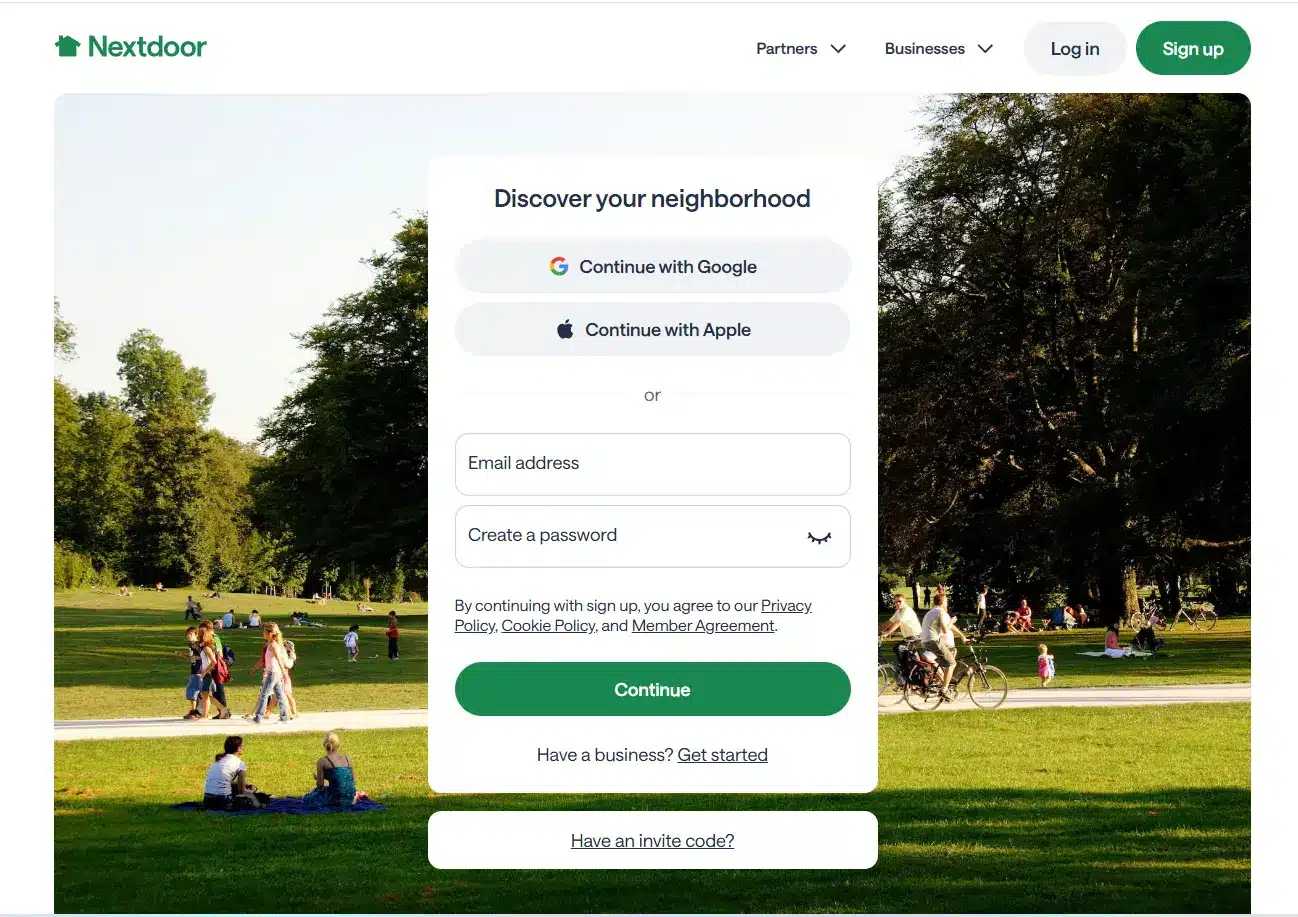
First, open your web browser and visit https://nextdoor.com/.
You can also download the official Nextdoor app on your compatible smartphone.
On the website, you’ll find the sign-up options on the main page. If you’re new to Nextdoor, look for the registration section rather than the login option.
Tip: Always make sure you’re using the official Nextdoor website or app. This helps you avoid fake login pages and protects your personal information.
Step 2: Enter Your Email Address and Create a Password
Once you reach the registration page, enter your email address and create a strong password.
Use an email address that you own and can access. You may need it to confirm your registration, receive account-related messages, or recover your account later.
When creating your password, choose something unique that you don’t already use for other websites.
Before continuing, review the information you’ve entered to make sure everything is correct. Then follow the on-screen instructions to proceed.
Step 3: Enter Your Neighborhood Information
Nextdoor is designed to connect people with their local communities, so your neighborhood information is an important part of the registration process.
Follow the instructions to enter your residential address or other requested location details.
Make sure the information is accurate and that you have permission to use the address you provide.
Why does this matter? Nextdoor uses location information to help connect members with the appropriate neighborhood and relevant local conversations.
If you’re unable to find your address, check the spelling and formatting. You can also consult Nextdoor’s official help resources for guidance if the problem continues.
Step 4: Verify Your Address
Address verification is an important part of joining Nextdoor.
Depending on your location and the available verification options, Nextdoor may ask you to confirm that you belong to the neighborhood you’ve selected.
Follow the verification instructions displayed on the platform. These may include an address-based verification process or another method made available to you.
Don’t assume that every account will receive the same verification options. The process can vary by region and account circumstances.
Remember: Use accurate information and complete the verification steps provided by Nextdoor. Do not attempt to bypass its verification requirements.
Step 5: Complete Any Additional Confirmation Steps
In some cases, Nextdoor may ask you to complete additional steps before you can access all account features.
For example, you may be asked to confirm your email address or provide additional information to establish that your registration is legitimate.
Check your inbox and spam folder if you’re expecting an email confirmation. If Nextdoor requests additional verification, follow the instructions shown on your screen.
If you don’t receive a confirmation message or encounter an error, avoid repeatedly submitting registration forms. Check your details first and consult the official Help Center if necessary.
Step 6: Set Up Your Nextdoor Profile
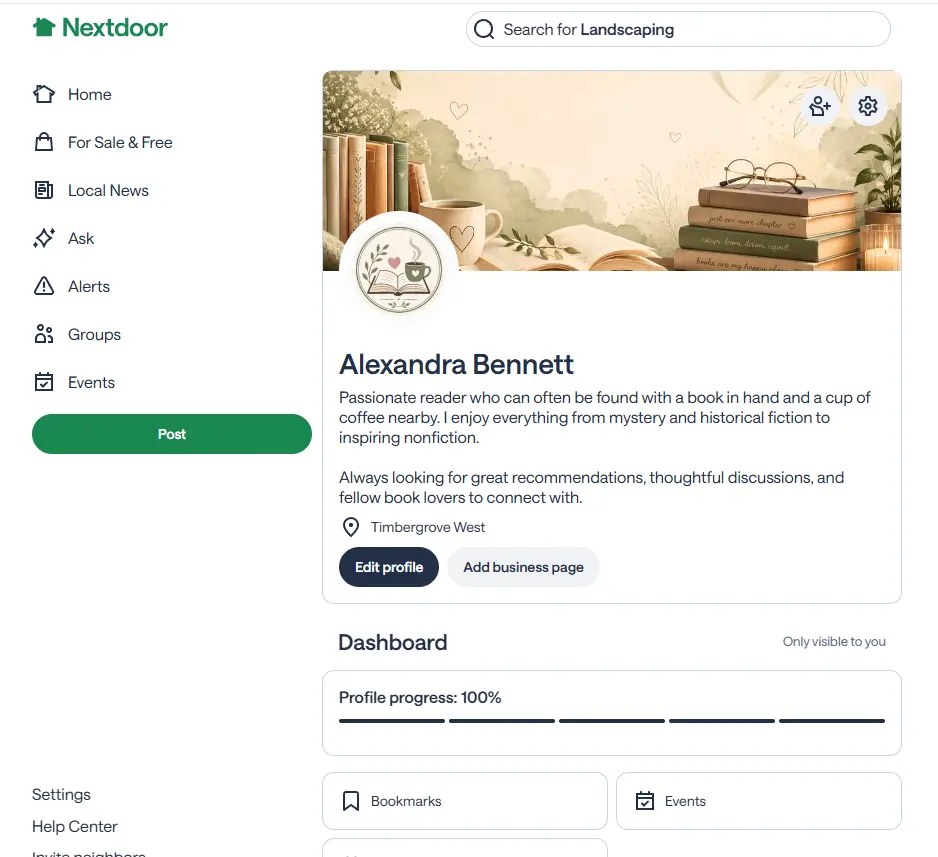
Once your account is ready, take a few minutes to complete your profile.
A clear, genuine profile helps other members understand who you are and makes your participation in neighborhood discussions more natural.
Depending on the profile options available, you can:
- Add a profile photo.
- Enter your name and other requested details.
- Review your neighborhood information.
- Adjust your notification and privacy settings.
- Familiarize yourself with the community guidelines.
You don’t need to share every personal detail publicly. Review the privacy options carefully and only provide information you’re comfortable sharing.
Step 7: Start Exploring Your Neighborhood
Congratulations! Once your account is set up, you can start exploring Nextdoor.
Here are a few simple ways to get started:
Read local conversations. See what people in your neighborhood are discussing.
Find recommendations. Look for suggestions about restaurants, home services, pet care, and other local needs.
Introduce yourself. If appropriate, write a friendly introduction that follows the community guidelines.
Participate respectfully. Share useful information, answer questions when you can, and avoid posting repetitive promotional messages.
The best way to become part of a neighborhood community is to contribute genuinely rather than focusing only on promotion.
Once your profile is ready, learn how to get recommendations on Nextdoor to build credibility and strengthen your local presence.
How to Create a Nextdoor Business Account
Are you planning to use Nextdoor for your company? The process is slightly different from setting up a personal neighbor account.
Nextdoor provides business pages that help eligible businesses connect with nearby customers, share updates, and build a local presence.
Here’s how to get started:
- Visit the official Nextdoor Business Page.
- Choose the option to sign up or claim your free business page.
- Sign in with an existing account or create an account using the available registration options.
- Search for your business and check whether a page already exists.
- Follow the instructions to claim or create the appropriate business page.
- Add accurate business information and complete any required verification steps.
You should be an owner, employee, or otherwise authorized representative of the business to claim its page.
If you’re planning to use the platform to reach local customers, explore our guide on how Nextdoor works for businesses.
What Can Businesses Do on Nextdoor?
A business page can help you introduce your services to nearby customers and build relationships with the community.
Depending on the features available to your business, you may be able to:
- Share business updates and local offers.
- Respond to recommendations and customer interactions.
- Help neighbors discover your products or services.
- Build awareness in your service area.
- Participate in relevant local conversations.
For example, a plumbing company could share seasonal maintenance advice, while a pet-care business could provide useful information for local pet owners.
The key is to offer information that genuinely helps the community.
Why Is Nextdoor Asking Me to Verify My Address?
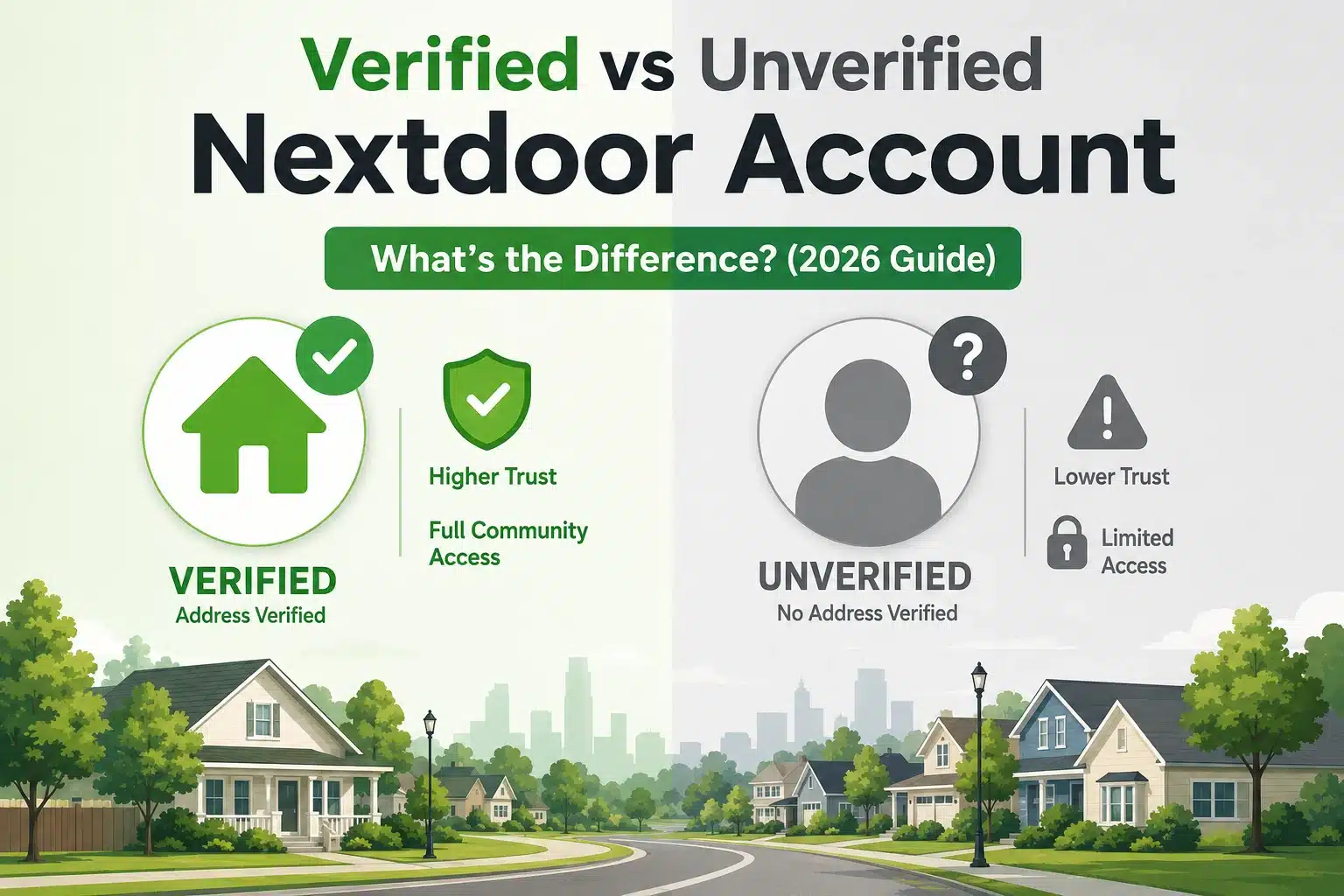
Nextdoor is built around real neighborhoods, so it needs ways to establish that members are connected to the communities they join.
Address verification helps the platform maintain neighborhood relevance and trust.
If you’re asked to verify your address, follow the official instructions. If your address isn’t recognized, check that you’ve entered it correctly and make sure you’re using the appropriate address for your account.
If verification still fails, contact Nextdoor Support for help. Do not use someone else’s address or submit false information to get through registration.
To better understand account verification, read our guide to the differences between verified and unverified Nextdoor accounts.
Common Problems When Creating a Nextdoor Account
Sometimes, registration doesn’t go as smoothly as expected. Here are a few common issues and what you can do about them.
1. My Address Isn’t Recognized
Double-check the spelling, street number, postal code, and other details. If the address is correct but still isn’t accepted, contact Nextdoor Support.
2. I Didn’t Receive a Confirmation Email
Check your spam or junk folder and make sure you entered the correct email address. If the message still doesn’t arrive, follow the available account-recovery or support instructions.
3. My Verification Didn’t Work
Review the instructions and confirm that the information you submitted is accurate. If Nextdoor offers another verification method, use it only if you’re eligible and the platform provides that option.
4. I Can’t Log In After Registration
Make sure you’re using the correct email address and password. If you’ve forgotten your password, use the official password-reset process.
5. My Account Has Been Restricted
If Nextdoor displays a restriction or suspension notice, read it carefully and follow the official appeal or support process where available. Creating another account to get around a restriction may violate the platform’s rules.
For additional help, visit the Nextdoor Help Center.
Tips for Using Your Nextdoor Account Safely
Creating an account is only the beginning. It’s also important to use it responsibly.
Here are a few practical tips:
- Use accurate information: Keep your registration details truthful and up to date.
- Protect your login credentials: Never share your password with people you don’t trust.
- Review privacy settings: Understand what information other members can see.
- Avoid spam: Don’t post the same promotional message repeatedly or send unwanted messages to neighbors.
- Follow the rules: Read Nextdoor’s Member Agreement and Community Guidelines.
- Use your account legitimately: Follow Nextdoor’s account limits and avoid creating additional accounts to manipulate engagement or evade restrictions.
These simple habits can help you maintain a more secure and reliable experience on the platform.
Frequently Asked Questions
Is it free to create a Nextdoor account?
Yes. Individuals can sign up for a personal Nextdoor account without paying a registration fee. Nextdoor also offers free business-page options, although some advertising and other business services may require payment.
Can I create a Nextdoor account without the app?
Yes. You can register through the official Nextdoor website at Nextdoor.com, so downloading the mobile app isn’t necessary to get started.
Do I need to verify my address to join Nextdoor?
Nextdoor uses address verification to help connect members with their neighborhoods. Follow the verification requirements presented during registration, as the available methods may vary by location.
Can I create a Nextdoor account for my business?
Yes. Nextdoor offers business pages for eligible businesses. You can start through its official business registration process and follow the instructions to create or claim your page.
Can I use Nextdoor if I live outside the United States?
Nextdoor’s availability and features depend on your country or region. Check the official website or app to see whether registration is supported where you live.
Why can’t I register for Nextdoor?
Registration problems can result from incorrect information, address-recognition issues, email-confirmation problems, or other eligibility and verification requirements. Check your details and consult the official Help Center if the issue persists.
Can I have multiple Nextdoor accounts?
Nextdoor’s Member Agreement sets account limits, including one account per individual per residence and one account per business location. Review the current agreement for the rules that apply to your region and intended use.
How long does it take to create a Nextdoor account?
The initial sign-up can be quick, but the total time depends on the information requested, the verification method available, and whether additional checks are necessary. There is no guaranteed completion time for every registration.
Final Thoughts
Learning how to create a Nextdoor account doesn’t have to be complicated. Visit the official website or app, enter your information, complete the required verification steps, and set up your profile.
If you’re joining as an individual, you can use Nextdoor to discover local recommendations and participate in neighborhood conversations. If you’re a business owner, a business page can help you build relationships with potential customers in your service area.
My advice is simple: start with accurate information, complete the required steps, and focus on being a helpful member of your community.
Ready to get started? Visit Nextdoor.com and follow the sign-up instructions to create your account.